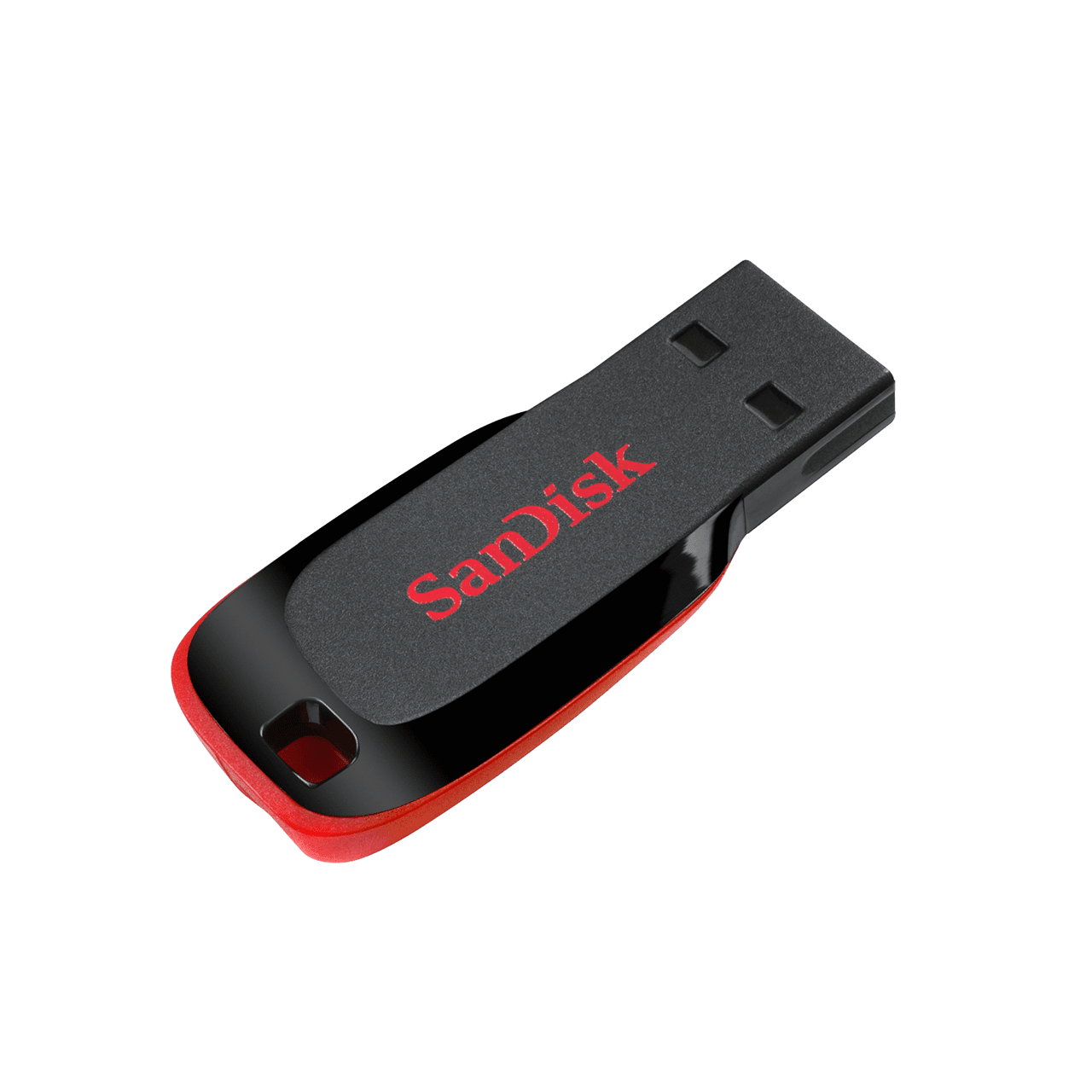
You will need the following supplies before beginning:
1x USB Flash Drive (Size must be 4 GB or greater)
1x Personal Computer (Must be your own computer)
---------------------------------------------------------------------------------------------
Let's begin!
First, grab your computer and go to rufus.ie or click the link: rufus.ie

Next, scroll down until you see "Download," followed by 4 links of "rufus-x.x.exe" (x.x is a placeholder for the version number)

IMPORTANT!!!!!!!!! - Most people have a normal x64 Windows install, so click "rufus-x.x.exe"
.
If you have a Windows machine that is x86, click "rufus-x.x_x86.exe"
If you have a Windows machine that is ARM64, click "rufus-x.x_arm64.exe"
If you want the portable version for a usb drive, click "rufus-x.xp.exe"
When you click on "rufus-x.x.exe", it will download in a couple minutes.
Open File Explorer, then click the Downloads page.
At the top, or near the top, you should see "rufus-x.x.exe" (x.x is a placeholder for the version number)

Double click the file.
There should be a popup asking for permission, click "Yes"
After that, you should see a window that looks like this:

Now go to zorin.com/os/download or click this: zorin.com/os/download
You should arrive at a page that looks like this:

Scroll down until you see Zorin OS x.x Core (x.x is a placeholder for the version number)

Then click Download.
When clicking download, there will be a pop-up, but at the bottom, there is a "Skip to download" button.
It should download. It may take between 20-40 mins for your download depending on your internet connection.
Once it is done downloading, open up Rufus again.

Click "SELECT" and choose the file that should say, "Zorin-OS-17.2-Core-64-bit.iso"
Then, click "Open"

Finally, click "START"

It should begin immediately.
Once the drive making is done, the progress bar should be green and say, "READY"

The image above was taken from the site: https://medium.com/@amalraj6198867/rufus-your-go-on-usb-formatting-tool-the-ultimate-guide-on-installing-and-using-it-dcc09a382e20
After this, you can eject your drive from your PC.
To boot your drive, look it up on google.